Mood Shell: a small Rust prompt with themes you can share as Markdown
Mood Shell is my small Rust prompt toolkit, with live color previews, Zsh history suggestions, Git shortcuts, and a gallery where you can make and share Markdown themes.
Updated
On this page 11 sections
I love Oh My Zsh. It made my terminal feel like a place I could customize, and I have used it alongside Starship. But the part I most wanted to change was small: the colors, the spacing, and the little bit of text waiting for my next command.
I wanted a tool organized around that experience. Pick a palette. See it immediately. Adjust a color without reading a configuration guide. Save something personal enough that I would want to keep using it.
That became Mood Shell, a small shell customization toolkit written in Rust. The command is moodsh. I've also started calling it Modge, although the executable is keeping its original name.
The current release is version 0.8.0. It runs natively on macOS, Windows, and Linux, integrates with Zsh, Bash, and PowerShell 7, and includes Tab completion, inline history suggestions in Zsh, and opt-in Git shortcuts. Its central idea is still small: themes you can create, read, and share as Markdown documents.
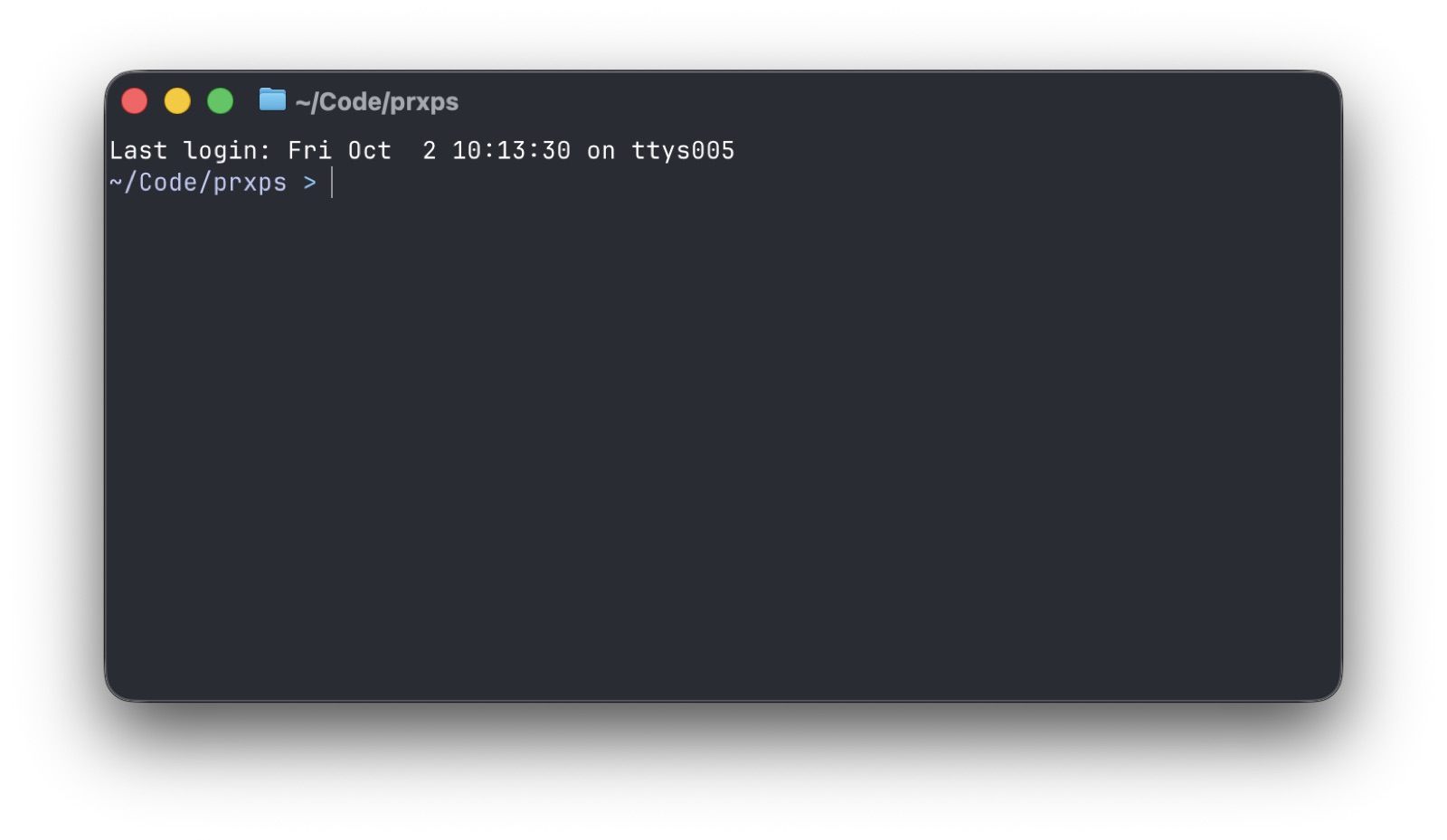
This is the prompt running in my actual terminal. On this Mac, I have removed Starship and Oh My Zsh and connected Mood Shell directly to Zsh. That's a personal choice, not an installation requirement. You can keep Oh My Zsh's plugins and disable only its theme.
Personalization is the feature
Mood Shell starts with five moods: dusk, aurora, ember, ocean, and paper. They range from soft lavender to green and cyan to warm amber; paper is designed for light terminal backgrounds.
Run:
moodsh customizeThe picker previews a successful command and a failed command. Up and down browse moods. Tab switches between a compact prompt and a two-line layout. The two-line version puts the mood name and directory on one row, leaving the next row for the command.
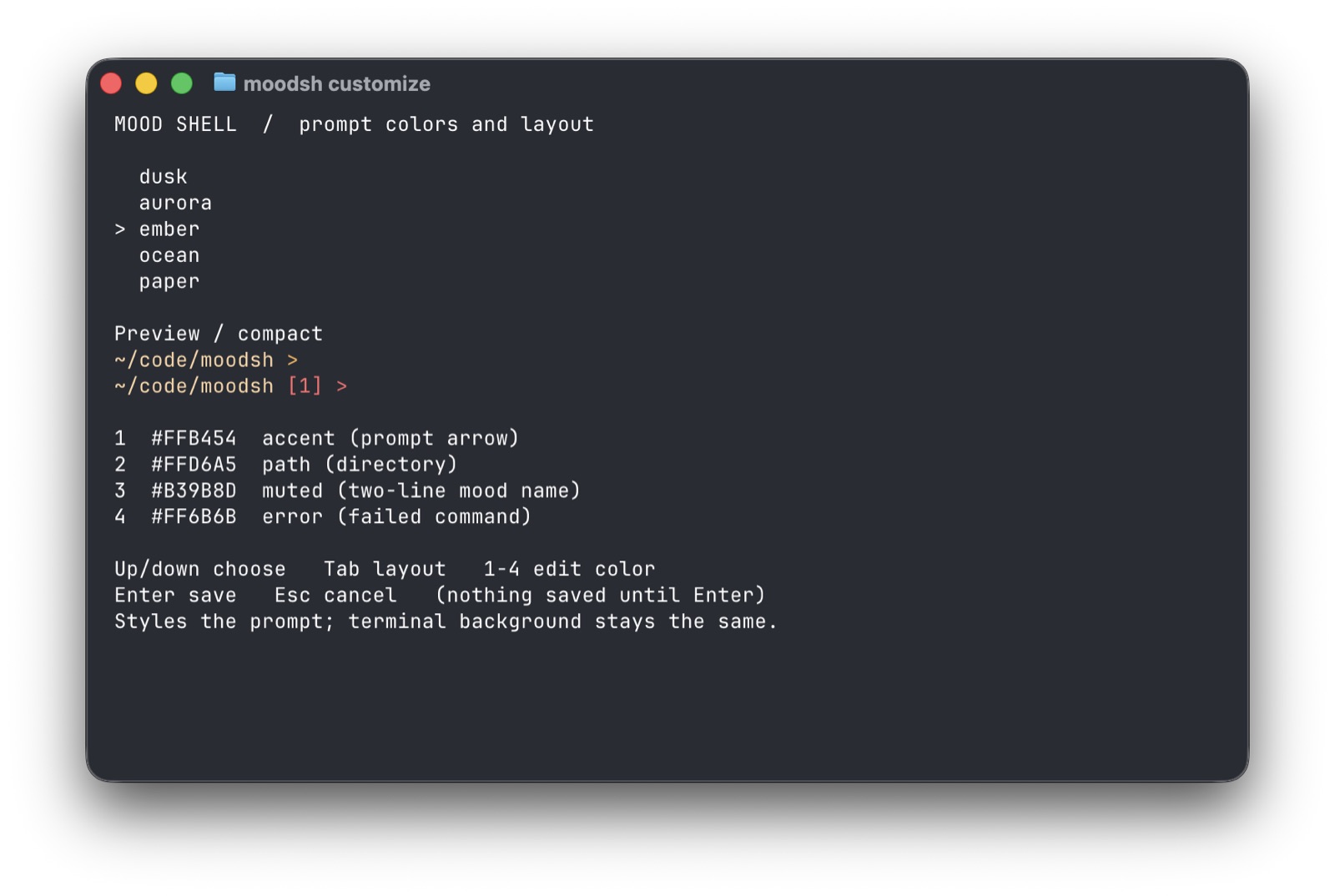
Four numbered keys control four colors:
| Key | Color | What it affects |
|---|---|---|
1 |
Accent | The prompt arrow after a successful command |
2 |
Path | The directory text |
3 |
Muted | The mood name in the two-line layout |
4 |
Error | The failed-command status and arrow |
Type or paste a hex color and the preview updates when the value is complete. Enter applies the color to your draft; another Enter from the main picker saves it. Escape discards a color edit or cancels the picker, depending on which view you're in. Ctrl-C cancels the session. Nothing is written until you save from the main picker.
That is the interaction I wanted: a small set of choices with immediate, visible consequences. You don't need to know an ANSI escape sequence, install a font, or maintain a collection of shell scripts to change the arrow from blue to pink.
Keep the directory readable
A path can be present and still be hard to see. Paper uses dark directory text for a light terminal; on a dark background, that can make the path difficult to read. Version 0.7.1 makes the terminal’s normal text color the default for paths. Explicit saved choices still win. To use the theme’s palette instead:
moodsh path --color themeBoth layouts already show the directory. moodsh path --format full shows its full path; --format home keeps the familiar ~/…. These preferences survive theme changes and stay out of exported Markdown themes. The picker also has a P toggle for path color. Use --color theme to restore the palette. None of this changes the terminal background.
A theme should carry its explanation
A palette has more context than four hex values. Someone chose those colors for a reason. Maybe they work well on a warm gray background. Maybe the failed-command color needs to be more noticeable. Maybe the author prefers the two-line layout because long paths are easier to read that way.
I wanted that explanation to travel with the theme. Markdown gives it somewhere to live that already works in editors, repositories, and code review.
Here is a complete theme document:
# Afterhours

Pink and lavender for a dark terminal, with a little room to breathe.

```moodsh
[mood]
name = "afterhours"
layout = "two-line"

[mood.palette]
accent = "#FF77CC"
path = "#E0DEF4"
muted = "#908CAA"
error = "#EB6F92"
```
The heading and paragraph are for people. The fenced moodsh block is for the program. Its contents are TOML: explicit fields, quoted values, and a schema small enough to understand in one sitting.
Save that as afterhours.md and run:
moodsh theme preview --file afterhours.md
moodsh theme apply afterhours.md
Previewing changes nothing. Applying validates the document and saves the palette for your next prompt. Editing the Markdown file later does not silently change your shell; you explicitly apply it again.
The repository and release archives include a longer Afterhours example, with color notes and instructions. You can put your own description, author credit, and preferred terminal background around the block. Mood Shell reads the palette; Markdown readers display the explanation.
This is where I want the project to stand out: make the theme the thing you can understand and pass around, rather than making every new user learn the implementation first.
Create one without starting from a blank page
You can generate a theme from any built-in mood:
moodsh theme new my-mood.md --from oceanThe new file contains the palette, layout, and an explanation of each color's role. The name defaults to my-mood, taken from the filename. Change the colors in your editor, preview the file, and apply it when you're happy with it.
If you'd rather work visually, save your colors in the picker first, then export them:
moodsh theme export my-mood.md --name my-moodExport preserves your current palette and layout in a new document. The optional name changes the exported theme's name without renaming your active prompt. New and export both refuse to overwrite an existing file, so use a fresh filename for a revision.
A theme author needs a text editor and a few colors. They don't need Rust, a package registry account, or a plugin API. Send someone the file, commit it alongside your dotfiles, or put it in a gist. The recipient saves a local copy, previews it, and decides whether to apply it.
An assistant can help draft the prose or propose a palette, too. The output still has to pass the same validation, and the person using it still gets a preview. There is no AI service inside Mood Shell and no model call involved in rendering a prompt.
The faint text I meant by autocomplete
When I said I wanted autocomplete, I meant the gray suggestion that appears while I type. Tab completion was already working; this was a different behavior. Version 0.8.0 adds it to Zsh by default.
Run echo moodsh-ready, then start typing echo moodsh- at the next prompt. The remaining ready appears in gray, drawn from your most recent matching history entry. Right Arrow at the end of the input accepts it; Enter still runs it. Tab continues to complete commands and paths.
I bundled the MIT-licensed zsh-autosuggestions engine instead of inventing another line editor. It uses local history, with no network requests or Rust process per keystroke. It does not guess commands you have never run, and moodsh leaves your history persistence settings alone. Bash and PowerShell keep their existing input behavior for now.
Update the binary and open a new terminal to enable it. To opt out, add --no-suggestions to your existing moodsh init zsh line and restart the shell. Existing suggestion engines and custom keybindings are preserved. The setup guide covers color preferences and troubleshooting.
Keep the Git shortcuts
The part of Oh My Zsh I missed immediately was muscle memory: gst, gco, gcmsg, glog. There are 26 familiar Git shortcuts for Zsh, Bash, and PowerShell. Run moodsh shortcuts git to see exactly what each one does.
gprom pulls and rebases from origin’s main branch, resolving the target when you run it. It prefers a valid local origin/HEAD, falls back to common names such as main or master, and stops before pulling if discovery fails.
To enable them, add the flag to your existing init line. For Zsh:
eval "$(moodsh init zsh --shortcuts git)"Open a new shell, then try gst. Existing aliases, functions, and commands win; PowerShell keeps its built-in gc, gl, and gp. This is a small, explicit set of shortcuts, with no external shell code to load and no extra work on each prompt. Git is still a separate installation. The setup guide lists the mappings and other shells.
A small place to share themes
There is now a theme gallery and a browser theme maker. Start with a palette or import your Markdown, adjust four colors and the layout, then download the file. The preview updates as you work; its background is illustrative and isn’t included in the theme.
Sharing opens a prepared GitHub issue for you to review and submit. I review submissions before adding them to the gallery with author credit. No website account is needed to make or download themes; submitting requires GitHub.
Why Markdown outside and TOML inside
I like Markdown as the interface for a theme's author and reader. I also want machine-readable settings to have predictable meaning. Parsing a prose sentence such as “make the arrow a warmer pink” would be a different product with different dependencies and failure modes.
The boundary is explicit: one labeled block, two layouts, four colors, one name. Unknown keys and invalid colors produce errors. A document with multiple theme blocks is rejected rather than choosing one silently. The format guide documents the supported standalone fences and the 64 KiB file limit.
The runtime configuration remains TOML. Applying a theme copies the validated settings into that config; the shell hook never scans Markdown. Once a theme is applied, you can move the document or share it without breaking the active prompt.
There is also a distinction between reading and running. Mood Shell never executes code blocks or prose from a theme. It doesn't follow links, fetch images, or download a theme from a URL. Those are documents you can inspect, not installation scripts disguised as color schemes. Error messages escape terminal control characters, too, so a rejected value can't use its diagnostic to send raw control sequences to the terminal.
Rust does the small, repetitive job
I recently wrote about returning to Rust for a small backend calculation. Mood Shell is another contained project where I can see the language's structure and inspect the result directly. I built it with Codex, iterating on the picker and then testing the prompt in my own shell.
The shell integration calls a compiled executable before each prompt. It reads the saved config, formats the directory and previous command's status, and returns the prompt text. There is no daemon, network request, account, or telemetry in that path.
The source is divided by responsibility: theme data and validation, config storage, prompt rendering, shell integration, the picker, and Markdown theme files. The Markdown feature uses the existing TOML and file-handling dependencies; it didn't require adding a general-purpose Markdown renderer.
The portability work matters as much as the language choice. Zsh and Bash interpret prompt syntax differently. Paths can contain dollar signs, backticks, or percent signs. Mood Shell escapes prompt syntax for each shell, strips terminal control characters from directory names, and disables Zsh prompt substitution so a directory name does not become a shell command.
Existing Bash and Zsh prompt hooks are preserved, and the PowerShell integration preserves $LASTEXITCODE after rendering. If the config is invalid, the hooks fall back to a simple usable prompt. These details aren't visible in a palette screenshot, but a prompt is code you run after nearly every command. It needs that kind of care.
Install it without installing Rust
I ran into an embarrassing bit of onboarding myself: the source-install command started with cargo, and my shell answered command not found. Rust was installed on my Mac, but its executable directory wasn't on PATH in that session. That was a useful reminder that building the program and using it are different tasks.
You do not need Cargo or Rust to use Mood Shell. The release page contains ready-to-run archives for Apple Silicon macOS, Intel macOS, x64 Linux with glibc, and x64 Windows, along with SHA-256 checksum files. Download the archive for your machine rather than GitHub's source-code archive.
On a Mac, extract the archive and open a terminal in the extracted folder. Run:
mkdir -p "$HOME/.local/bin"
install -m 755 ./moodsh "$HOME/.local/bin/moodsh"
export PATH="$HOME/.local/bin:$PATH"
moodsh --version
Then add these lines to the bottom of ~/.zshrc:
export PATH="$HOME/.local/bin:$PATH"
eval "$(moodsh init zsh)"
Open a new terminal window and run moodsh customize.
Use one prompt renderer at a time. Disable an existing Starship or Oh My Posh init line. If you use Oh My Zsh, set ZSH_THEME="" and load Mood Shell after Oh My Zsh. You can keep the framework and its plugins; uninstalling it also removes the shortcuts and helpers it supplied.
The README has the Linux, Bash, and PowerShell setup instructions, as well as the optional source build. Windows runs natively and does not need WSL. macOS downloads are currently unsigned, so a downloaded binary may encounter macOS security checks; signing and smoother installation are still work to do.
Installation and activation are separate. Mood Shell does not edit your startup files automatically. To disconnect it, remove its init line and restart the shell.
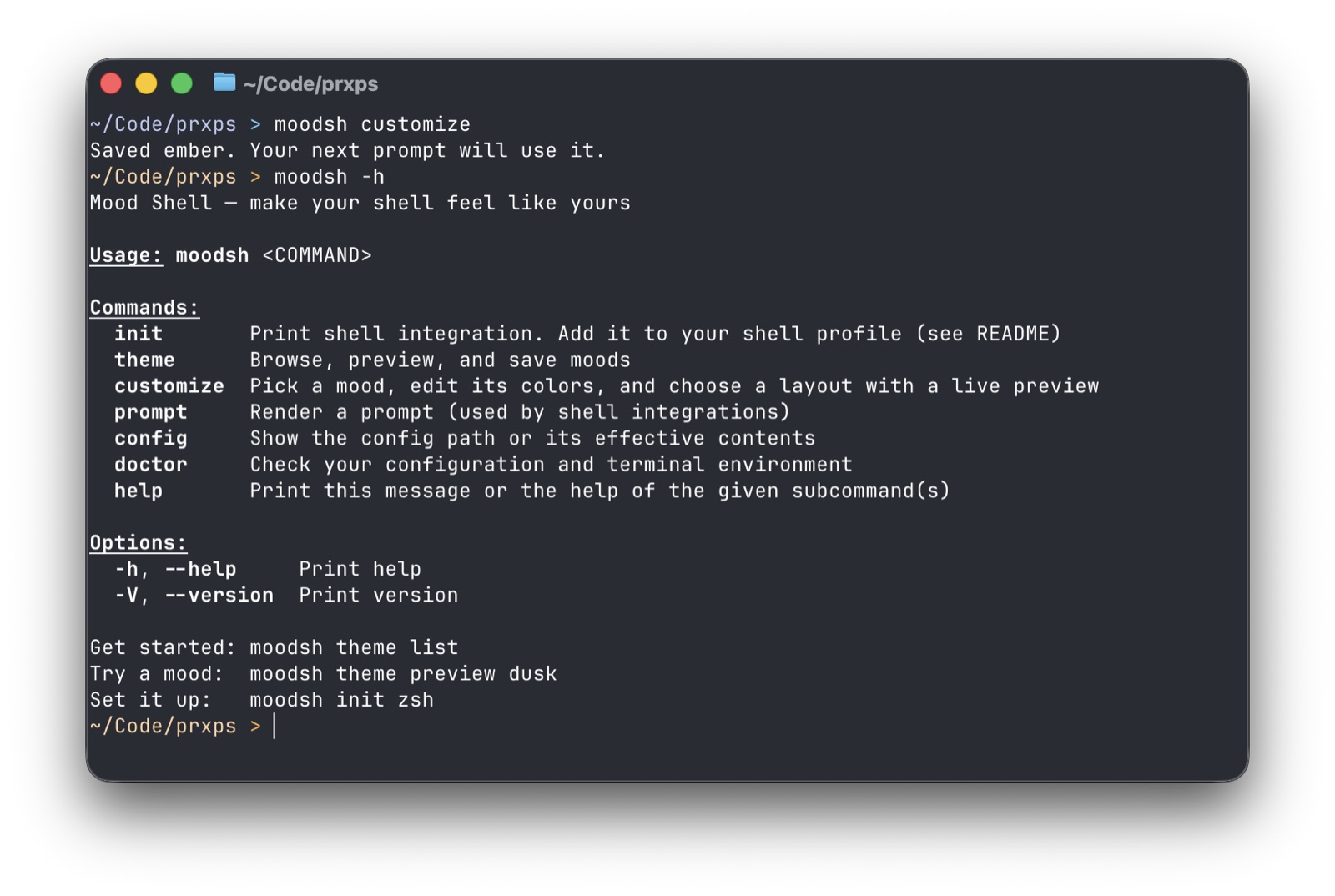
Run moodsh --help to see the available commands. Here is my terminal after saving Ember in the picker:
What is ready, and what isn't
I am releasing this for people who want to try a small, personal prompt, and I'm using it myself. Version 0.8.0 is still an early release, not a claim that every terminal and shell setup has been covered.
The release passes 34 Rust tests and CI on macOS, Windows, and Linux. The tests cover Markdown round trips, malformed files, no-overwrite behavior, unsafe input, and the existing prompt behavior. Shell integration tests run against real Bash, Zsh, and PowerShell processes where supported; CI requires PowerShell on all three operating systems. Real Zsh terminal tests on macOS and Linux check ghost text, acceptance without execution, cancellation, Unicode, custom keybindings, and Tab completion together. The interactive picker also has terminal tests on macOS and Linux, plus input-state tests on all three platforms. That doesn't replace testing the Windows picker in every terminal host.
The scope is deliberately clear. Mood Shell styles the prompt and offers Tab completion, Zsh history suggestions, and optional Git shortcuts. It also initializes Zsh’s standard completion system when needed, so command and path completion work after removing Oh My Zsh. It doesn't change terminal backgrounds, add command syntax highlighting, manage shell extensions, support Fish, or animate your terminal. I noticed the pulsing cursor as soon as the prompt was running and loved how the whole thing looked, but that pulse belongs to the terminal emulator. It isn't a Mood Shell feature.
The next things I want to learn come from people making themes and trying the installation on their own machines: whether the four color roles are enough, whether the preview makes sense without explanation, and where setup still requires too much shell knowledge.
Get Mood Shell, browse the themes, or make your own. The source is on GitHub.